1. Shortcuts
1.1 Open from Command Line
PyCharm --> Tools --> Create Command-line Launcher
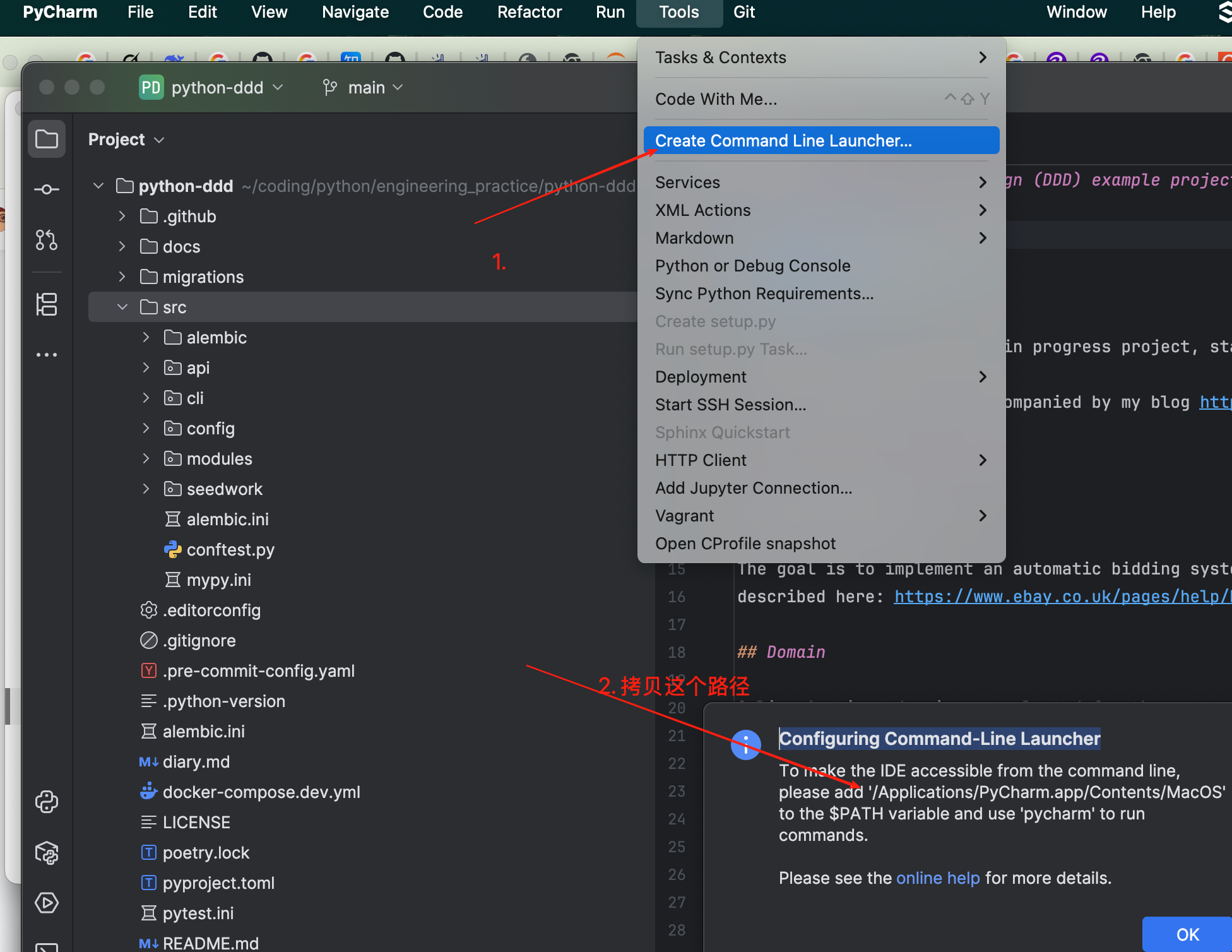
echo 'export PATH="/Applications/PyCharm.app/Contents/MacOS:$PATH"' >> ~/.zshrc
source ~/.zshrc
historyCommand + Shift + Hhistory | grep pythonCtrl + RCommand + ;gcloudCommand + ;, iTerm will pop up a window listing all history commands starting with your entered prefix in the current session.

Downside: Display is not complete
Note:
To solve the cross-session history saving issue with Command + ; completion in iTerm2 and ensure Shell correctly saves history:
vi ~/.zshrc edit the file and add at the end:
# Set history file size and save location
HISTFILE=~/.zsh_history         # History file path
HISTSIZE=10000                  # Number of history entries saved in memory
SAVEHIST=10000                  # Number of entries saved in history file

# Append history (instead of overwriting)
setopt appendhistory            # Merge history from multiple sessions
setopt inc_append_history       # Append history in real-time (no need to restart session)
setopt share_history            # Share history across sessions
setopt extended_history         # Record timestamps
Apply changes: source ~/.zshrc
If you want to achieve the following effect, showing gray suggestions while typing:

Using zsh and oh-my-zsh:
sh -c "$(curl -fsSL https://raw.github.com/ohmyzsh/ohmyzsh/master/tools/install.sh)".git clone https://github.com/zsh-users/zsh-autosuggestions ~/.oh-my-zsh/custom/plugins/zsh-autosuggestionsplugins=(zsh-autosuggestions) (add a new line)source ~/.zshrc to apply the configuration....
# Add wisely, as too many plugins slow down shell startup.
plugins=(git)
plugins=(zsh-autosuggestions)
...
Similar to before, enter a prefix, and matching history commands will automatically appear in gray. If you accept it, press -> arrow key. If not, use up/down arrows to navigate.